How Notes
protects your data.
Lock the app, protect individual notes and save encrypted backups.
Explore the protections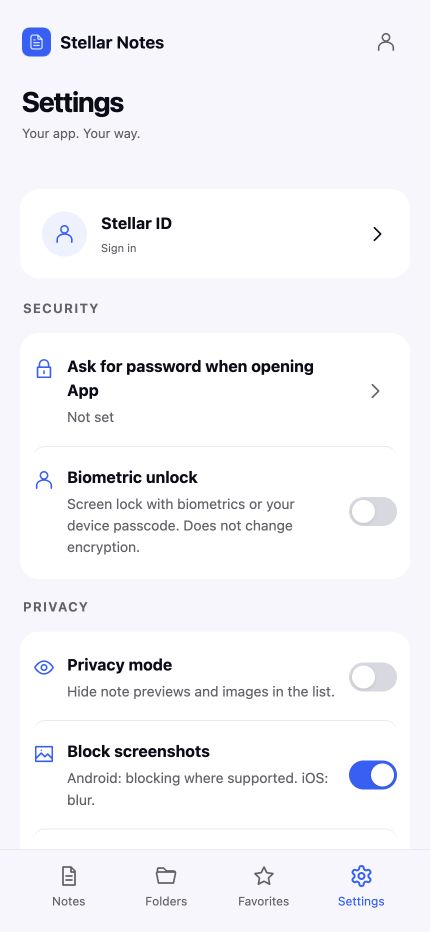
Your passwords, explained.
See what each password or code is used for.
Your app password.
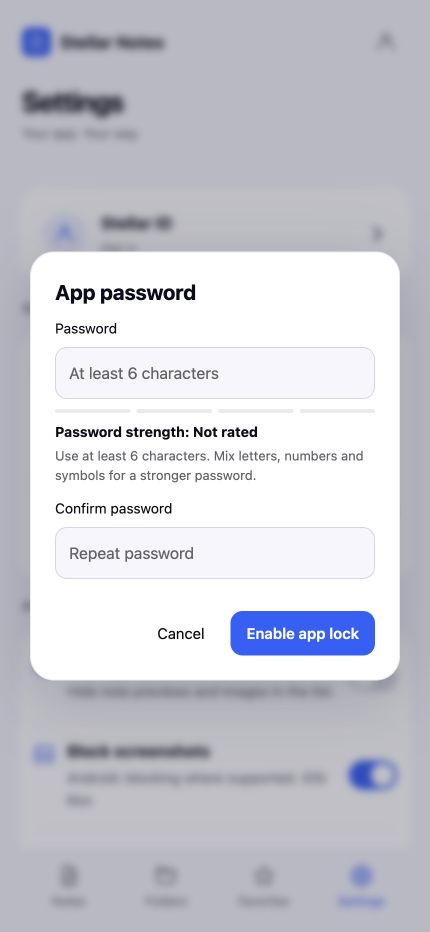
Set an app password to lock Notes when you open it. It also encrypts your locally saved notes and folders and protects your saved sync key.
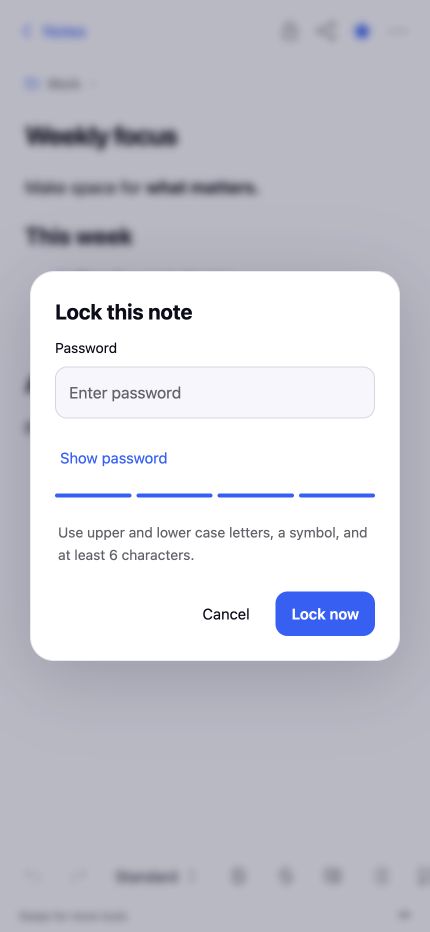
Lock individual notes.
Choose a password for a private note. Its title and text are encrypted, and it stays locked in backups and after import.
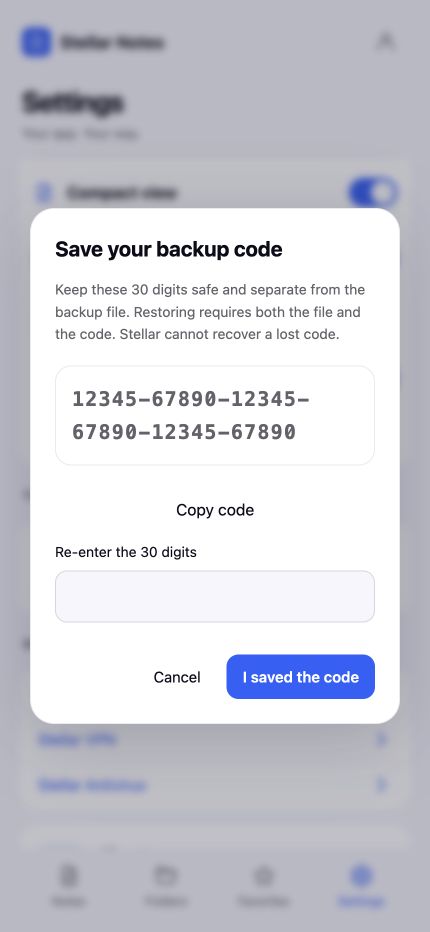
Keep all 30 digits.
Notes generates a separate code when you make a backup. Save the file and code separately. You need both to import your notes.
Face ID or fingerprint.
Open Notes with Face ID or your fingerprint. Your device confirms it’s you before showing the app.
Keep the file.
Keep the code.
Your backup is encrypted on your device. Save it somewhere safe, with its code stored separately.
- Save your code.
Write down the 30 digits, then enter them again to confirm.
- Save the encrypted file.
Choose where you want to keep it.
- Import when you need it.
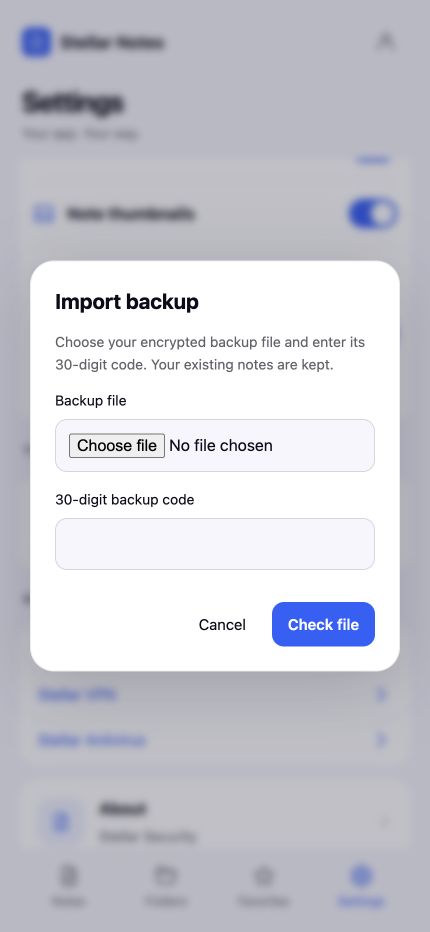
Choose the file and enter its code. Notes adds copies without overwriting your existing notes.
The technical details.
How encryption, local storage and recovery work.
How is a backup encrypted?
- Key derivation
- Argon2id 1.3 · 256 MiB · 3 passes
- Encryption
- XChaCha20-Poly1305 · 256-bit key
- Random inputs
- A fresh salt and nonce for every encrypted backup
The file encrypts your notes and folders. Its format, version and record counts remain readable.
What is saved on my device?
An app password encrypts the notes and folders saved on your device. Without one, ordinary notes and folders are saved locally without this encryption. Individually locked notes keep their titles and text encrypted.
Your app password also protects the saved sync key. Biometric unlock controls access to the screen; encryption stays the same.
How does sync use encryption?
Notes uses AES-256-GCM to encrypt notes for sync. Your account’s encryption key is held in app memory while Notes uses it.
With password sign-in, the authentication service receives your password and the app unlocks the encrypted account key. With OPAQUE sign-in, the app obtains its root key through the OPAQUE exchange. Your app password can protect the key saved on your device.
How does Trash work?
When Trash is enabled, deleted notes are kept for 30 days. Open Recently deleted, choose a note and tap Restore note.
Turning Trash off keeps notes already in it. Future deletions are permanent, and Notes asks you to confirm first. Permanently deleted notes cannot be restored from Trash.
See the code.
Explore the code for backup encryption, local storage and account sign-in.